Pricelists in Zoho Books
Businesses have different strategies to sell products, some of which include giving discounts to loyal customers, or providing seasonal discounts on products. With Price Lists, you can set custom rates for the items that you buy from your vendors, or sell to your customers. You can change the rate of items based on a certain percentage, or by setting custom rates.
Enable Price Lists
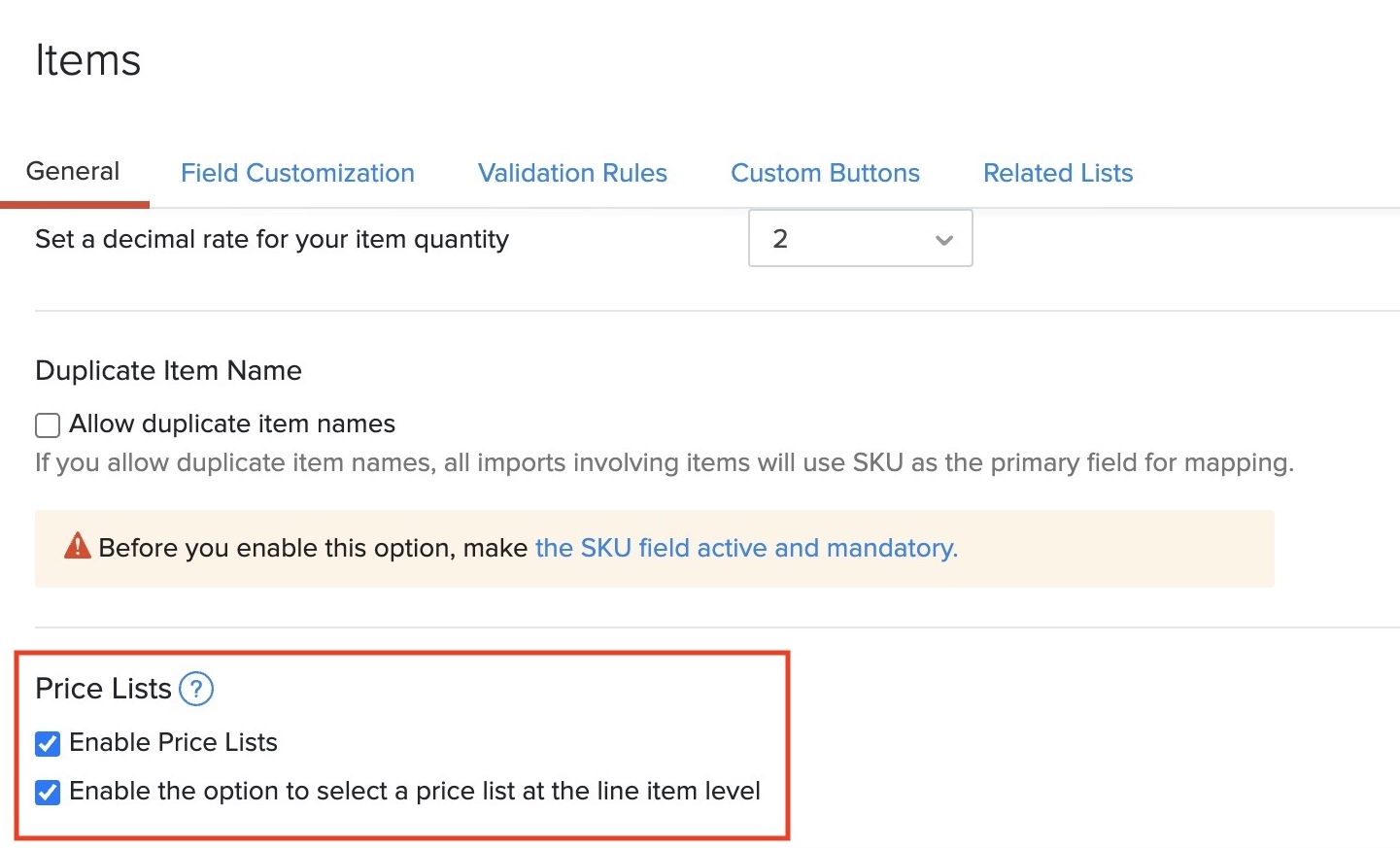
To get started off with price lists in Zoho Books, you would have to enable them:
- Go to Settings on the top left corner of the page.
- Select Items under Items.
- In the General tab of the Items page:
- Check the Enable Price Lists option under Price Lists. (or)
- Check the Enable the option to select a price list at the line item level option if you want to apply different price lists for each line item.
- Click Save.
Create Price List
In Zoho Books, price lists can be created for both sales and purchase entities.
The prices of items in a price list can be set based on two main factors:
- Percentage - increase or decrease the item price by a percentage
- Price - set a unique price for each item
To add a price list:
- Go to Items > Price Lists and select + New Price List.
- Enter the Name of the price list.
- Select the Type as Sales if you wish to apply this price list for your customers or Purchases if you wish to apply it for your vendors while creating transactions for them.
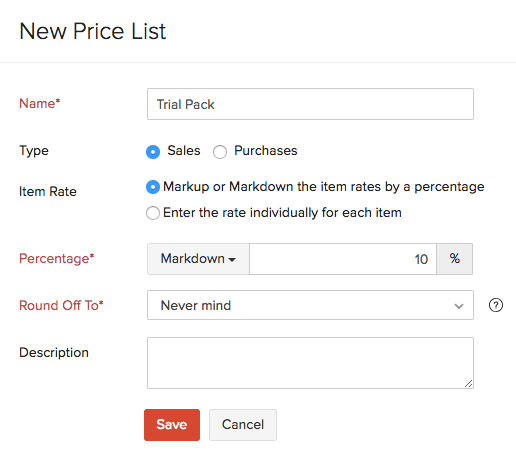
- Select the Item Rate as Markup or Markdown the item rates by a percentage to create a price list based on Percentage.
- If the price is to be increased based on the price list, choose Markup. If it is to be decreased, choose Markdown.
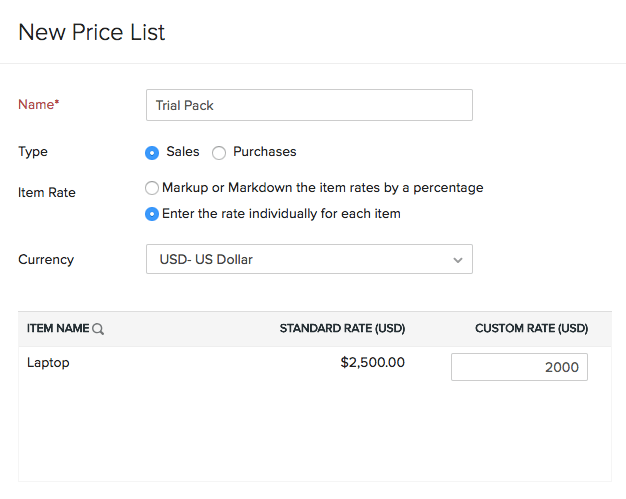
- Select the Item Rate as Enter the rate individually for each item to assign unique prices for each item.
- Enter the Custom Price of each item.
- Click Save.
Note:
Fields in red are compulsory, others are optional.
Apply Price List
Once you have enabled and created a price list, you can apply it to various sales and purchase transactions.

Price lists can also be assigned to your contacts. In this way, every time a transaction is created for them in Zoho Books, the price list will be applied automatically in it and new price is auto-calculated.
You can assign a price list for your contacts while creating or editing them.
Apply Price List on Billable Items
How price lists are applied to billable items in an invoice depends on your preference to have option to apply price list at the line item level.
If you had disabled the option to apply price lists at the line item level, then the price list will not affect the billable line item amount.
However, if you had enabled the option to apply price lists at the line item level, you can choose the apply the price lists on the billable items as well.
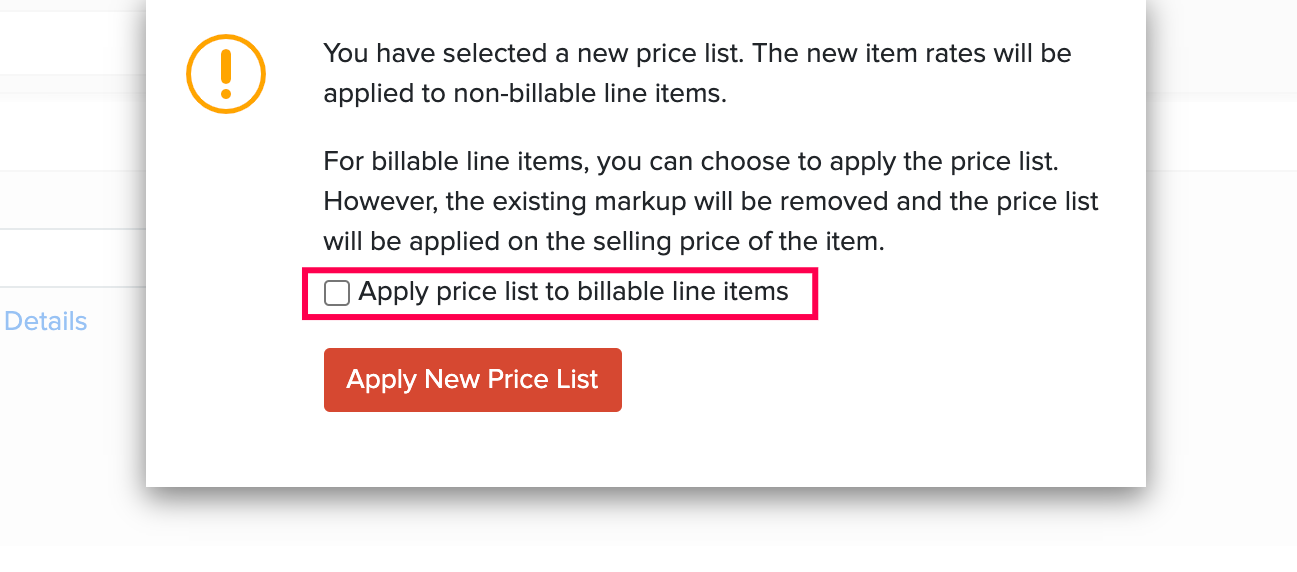
If the billable item amount was marked up, the mark up amount will be removed and the price list will be applied on the item amount.
Mark Price List as Inactive
If you are no longer using a price list, you can mark it as inactive instead of deleting it.
To mark a price list as inactive:
- Go to Items > Price Lists.
- Hover over the price list you want to mark as inactive.
- Click Mark as Inactive.

To mark an inactive price list as active:
- Go to Items > Price Lists.
- Hover over the price list you want to mark as active.
- Click Mark as Active.

Delete Price List
To delete any sales or purchase price lists that you might have created:
- Go to Items > Price Lists.
- Hover over the price list you want to delete.
- Click the Delete icon next to it.
- Click OK to confirm.
Sometimes, you might not want to use the price list currently but might want to use it later on. In such cases, you can mark it as inactive.
Note:Deleting a price list will not affect any transactions on which you had applied it earlier.

Import Price Lists
If you already have a list of sales or purchase price lists, you can import them into Zoho Books in CSV, TSV or XLS format.
To know the format of the import, i.e. the columns and data to be included in the import file, you can download the sample import file which we’ll be looking at in the steps below:
- Go to Items > Price Lists.
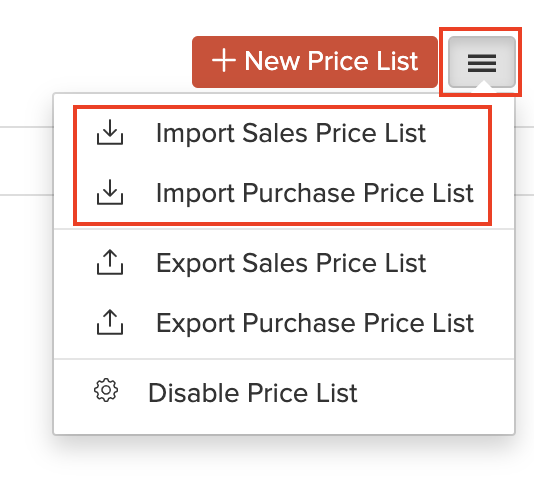
- Click the More icon in the top right corner of the page.
- Select Import Sales Price Lists or Import Purchase Price Lists.
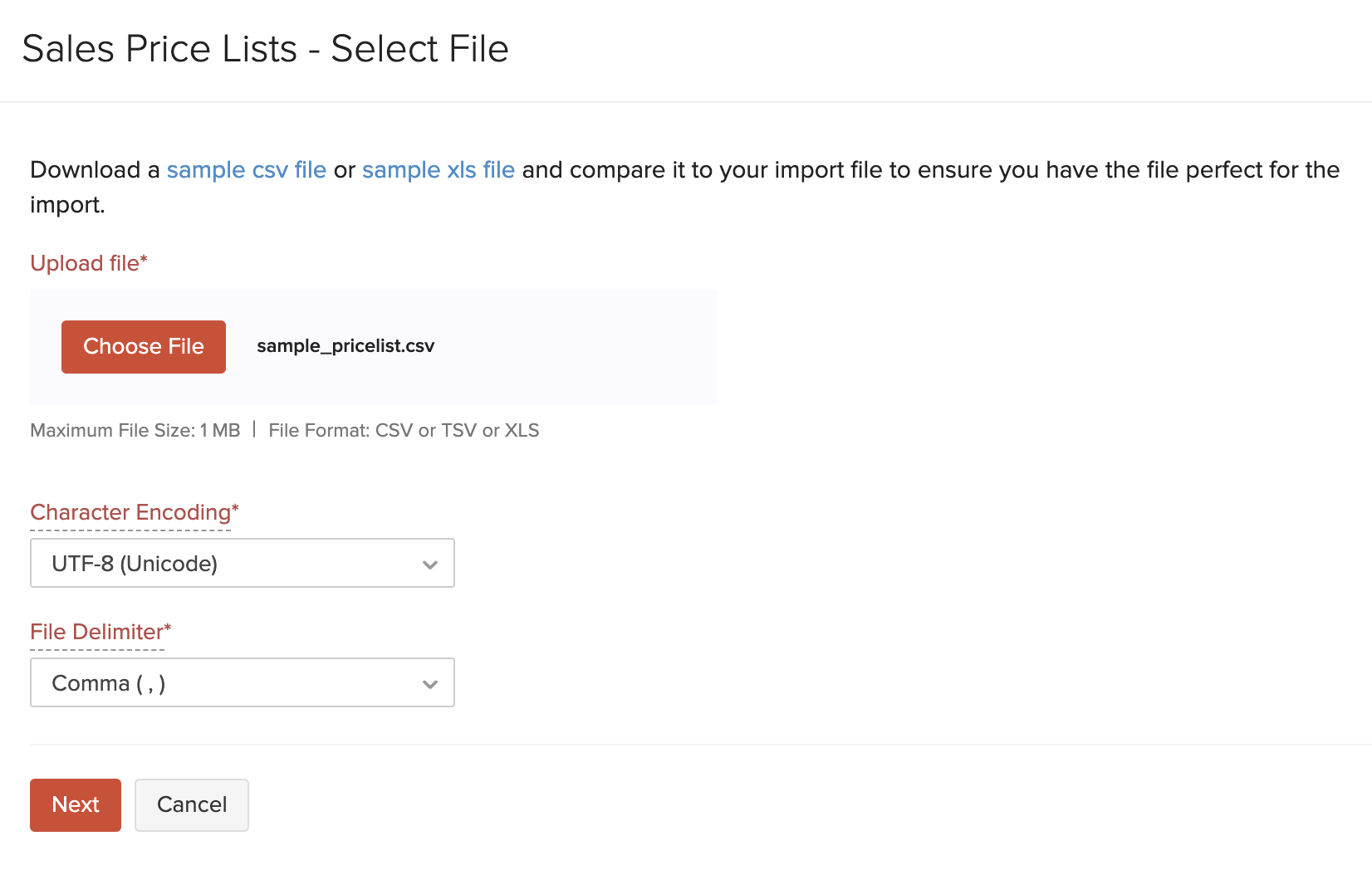
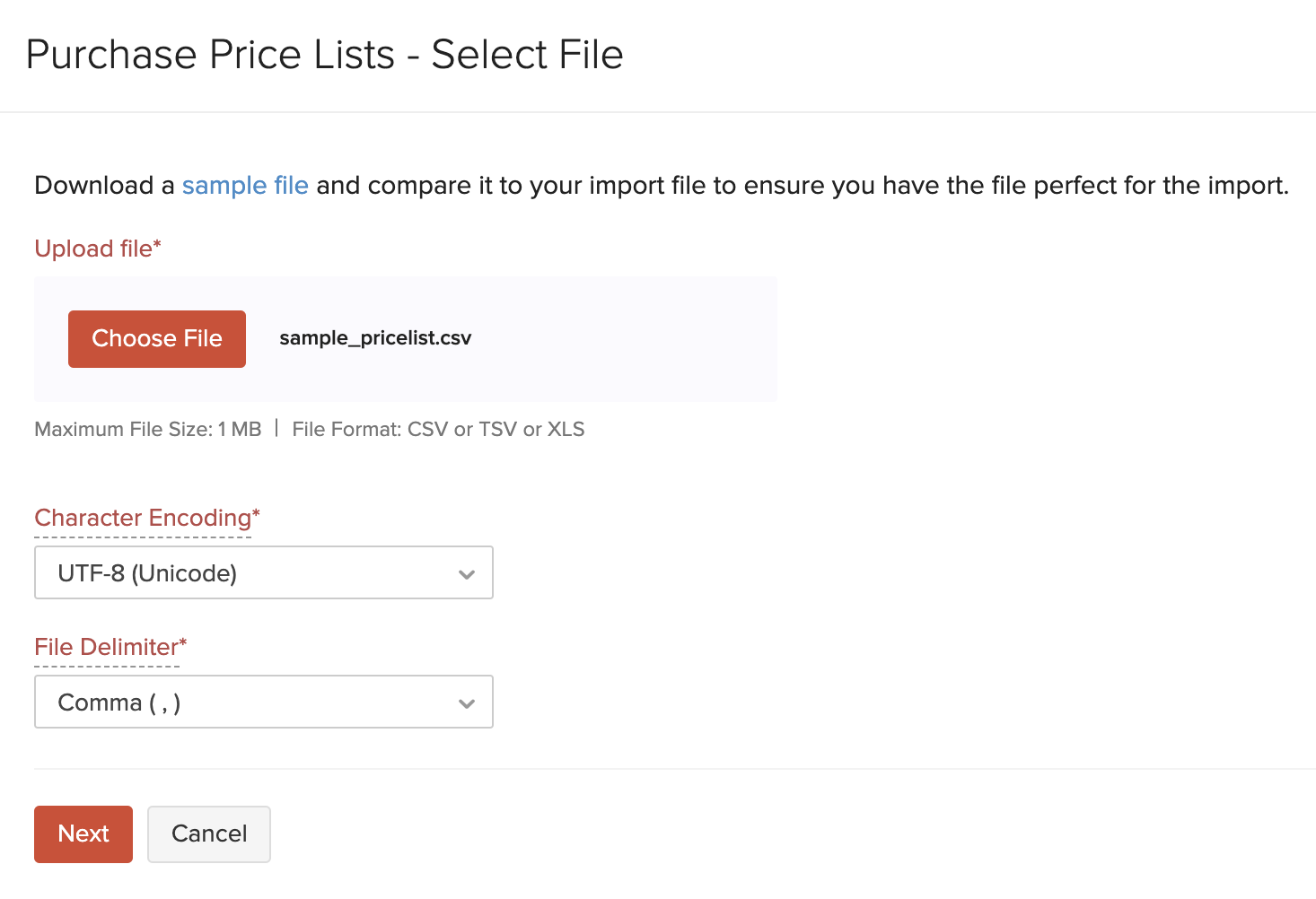
- Click the Choose File button under Upload file. You can download a sample CSV file for your reference by clicking sample file.
Insight:The file size cannot be more than 1 MB.
- Choose the Character Encoding and File Delimiter for your file.
Insight:Character Encoding is used to pair numbers with characters. By default, the Unicode Transformation Format (UTF-8) encoding is used which supports a wide range of characters that go beyond 8 bits.
Insight:The Field Delimiter is used to separate two values in a row. While importing price lists, the default file delimiter is comma (,).
- Click Next.
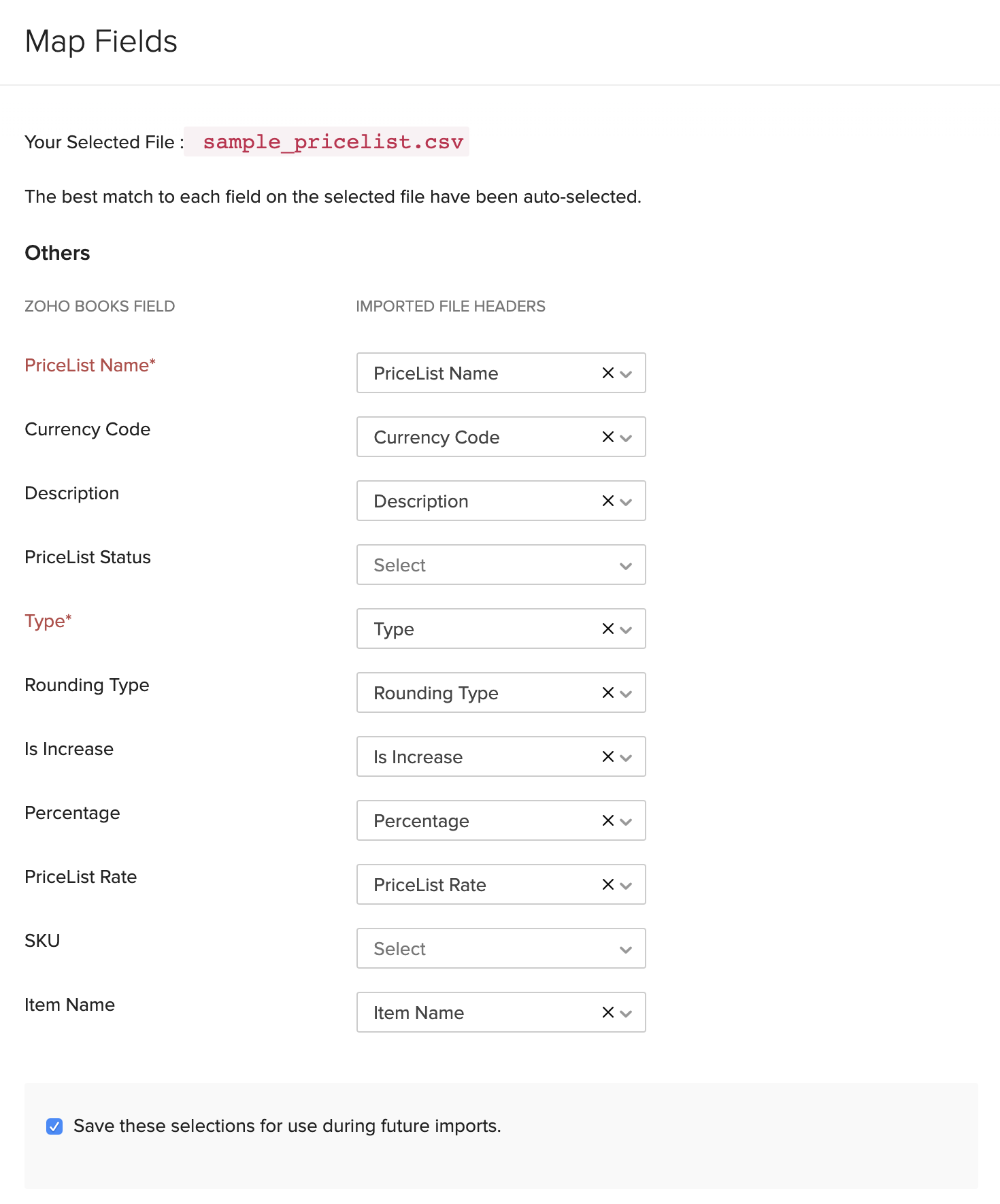
- Ensure that all the fields are mapped correctly in the Map Fields page.
- Mark the box Save these selections for use during future imports if you want to use the similar import format next time.
- Click Next.
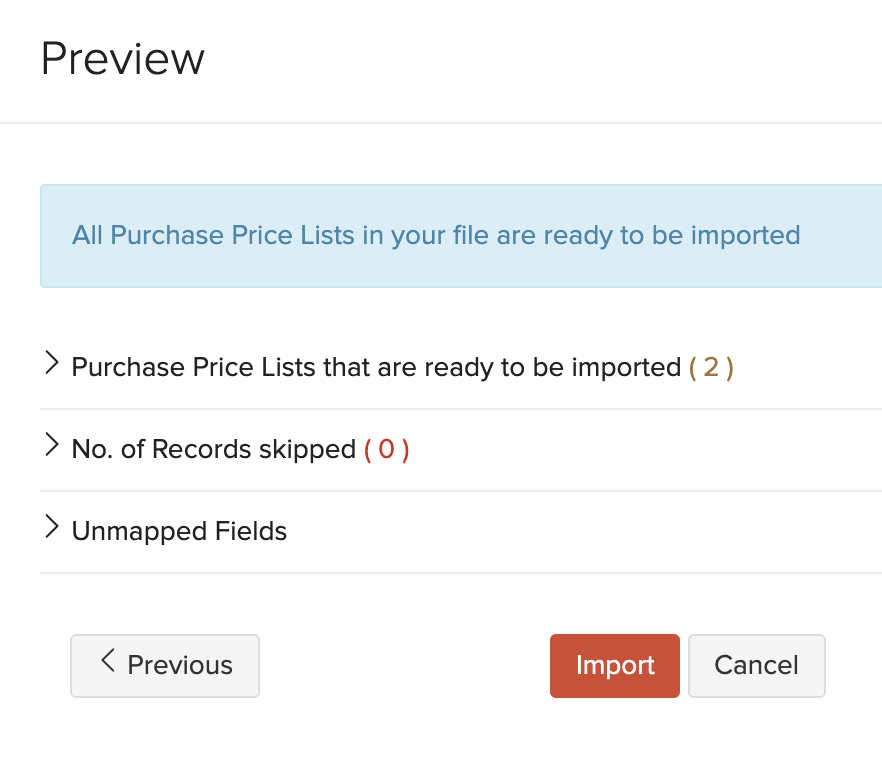
- In the Preview window, click Import.
Export Price Lists
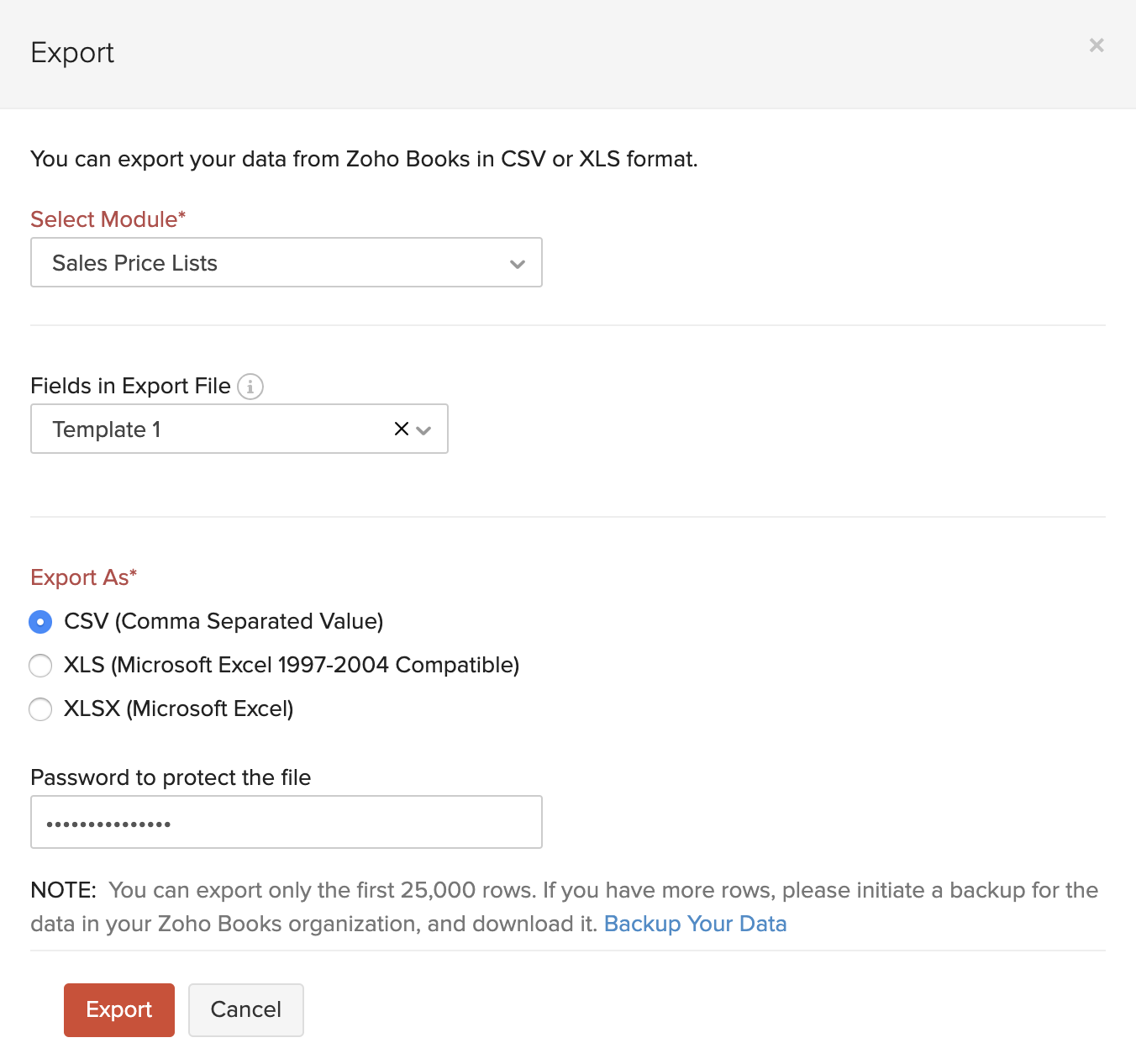
You can export all the sales and purchase price lists in Zoho Books in the CSV or XLS format. Here’s how:
- Go to Items > Price Lists.
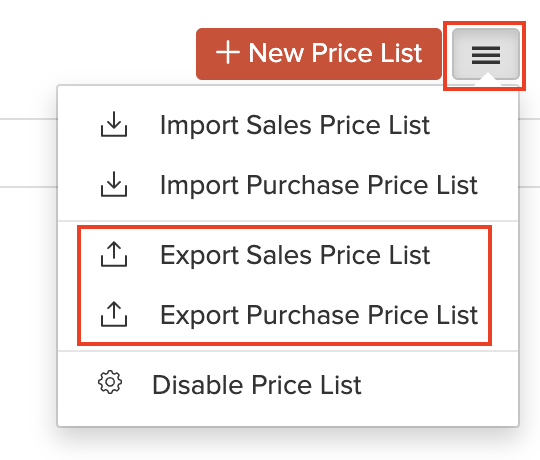
- Click the More icon in the top right corner of the page.
- Select Export Sales Price List or Export Purchase Price List.
- Enter the necessary fields.
- Click Export.